Linux
Apache 网站
Mariadb 数据库
PHP 开发语言
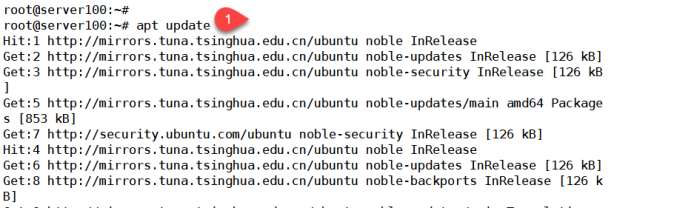
root@server100:~# apt update 更新系统

root@server100:~# apt install apache2 安装阿帕奇2


root@server100:~# systemctl is-enabled apache2 启动阿帕奇2,并设置开机启动
enabled
root@server100:~# systemctl status apache2 查看阿帕奇2的状态
● apache2.service – The Apache HTTP Server
Loaded: loaded (/usr/lib/systemd/system/apache2.service; enabled; preset: enabled)
Active: active (running) since Fri 2025-02-07 08:51:49 CST; 1min 26s ago active 活动的(running) 正在运行
root@server100:~# ufw allow ‘Apache Full’ 防火墙允许阿帕奇通过
Rules updated
Rules updated (v6)
root@server100:~# ufw status 查看防火墙的状态
Status: inactive 状态是不活跃的(关闭)
root@server100:~# ufw enable 开启防火墙
Command may disrupt existing ssh connections. Proceed with operation (y|n)? y 命令有可能会中断本次ssh的连接,是否继续
Firewall is active and enabled on system startup
root@server100:~#
root@server100:~# ufw status
Status: active
To Action From
— —— —-
Apache Full ALLOW Anywhere
Apache Full (v6) ALLOW Anywhere (v6)
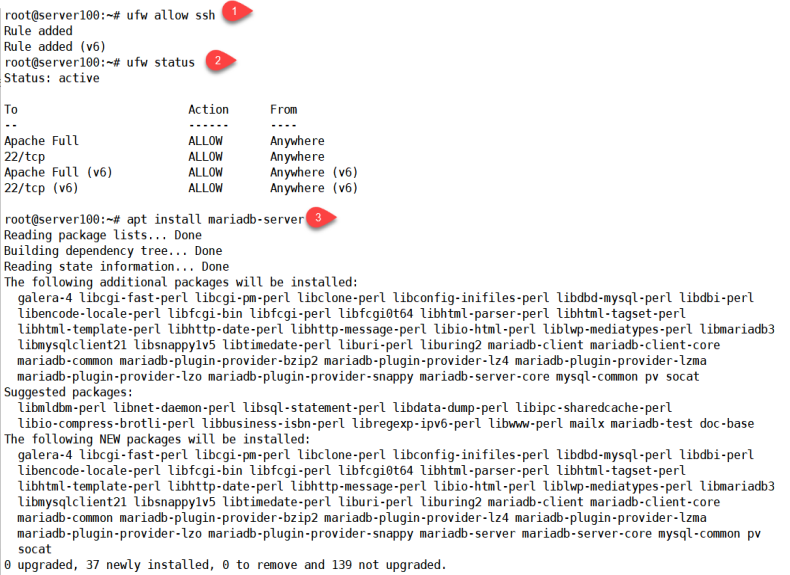
root@server100:~# ufw allow ssh 防火墙允许ssh远程访问
Rule added
Rule added (v6)
root@server100:~# ufw status
Status: active
To Action From
— —— —-
Apache Full ALLOW Anywhere ipv4的放行
22/tcp ALLOW Anywhere
Apache Full (v6) ALLOW Anywhere (v6) ipv6的放行
22/tcp (v6) ALLOW Anywhere (v6)
root@server100:~# apt install mariadb-server 安装数据库的服务端
root@server100:~# systemctl is-enabled mariadb 启动数据库,并设置开机启动
enabled
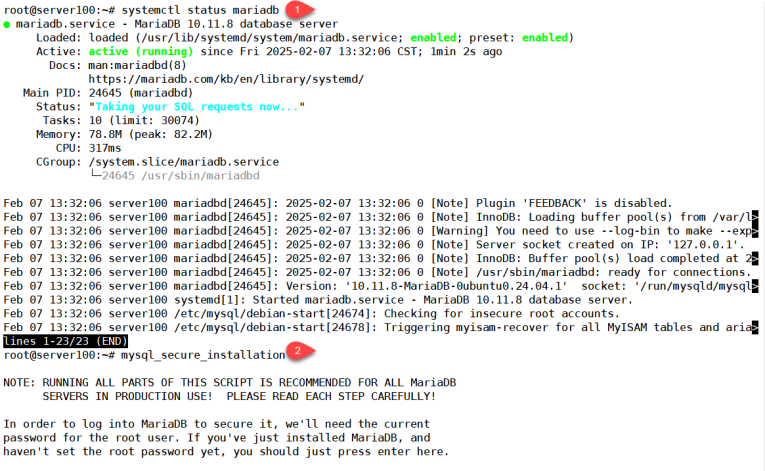
root@server100:~# systemctl status mariadb 查看数据库的状态
● mariadb.service – MariaDB 10.11.8 database server
Loaded: loaded (/usr/lib/systemd/system/mariadb.service; enabled; preset: enabled)
Active: active (running) since Fri 2025-02-07 09:13:22 CST; 1min 11s ago
root@server100:~# mysql_secure_installation 数据库的安全设置
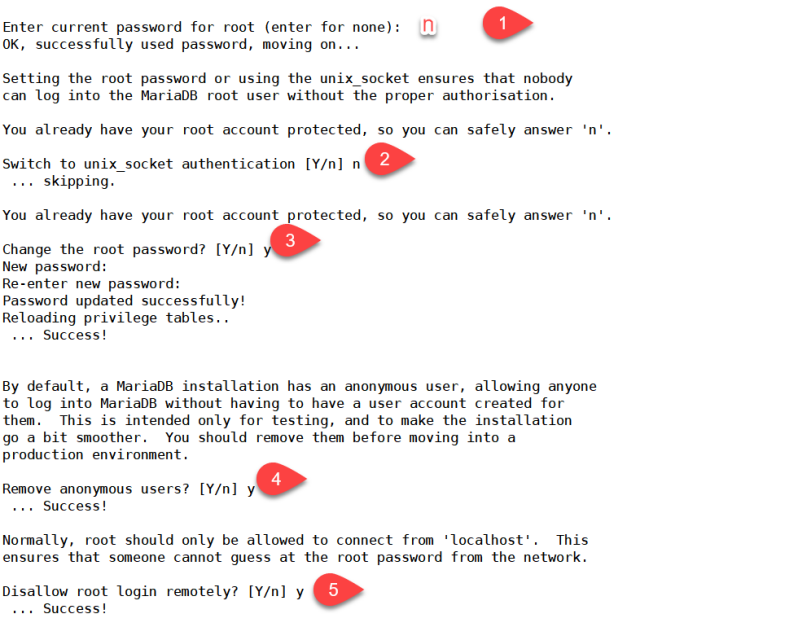
NOTE: RUNNING ALL PARTS OF THIS SCRIPT IS RECOMMENDED FOR ALL MariaDB
SERVERS IN PRODUCTION USE! PLEASE READ EACH STEP CAREFULLY!
In order to log into MariaDB to secure it, we’ll need the current
password for the root user. If you’ve just installed MariaDB, and
haven’t set the root password yet, you should just press enter here.
Enter current password for root (enter for none):
OK, successfully used password, moving on…
Setting the root password or using the unix_socket ensures that nobody
can log into the MariaDB root user without the proper authorisation.
You already have your root account protected, so you can safely answer ‘n’.
Switch to unix_socket authentication [Y/n] n 交换机切换到接口认证吗?n
… skipping.
You already have your root account protected, so you can safely answer ‘n’.
Change the root password? [Y/n] y 更改root密码吗?
New password: 规则:最低8位,带数字,字母大小写,特殊符号
Re-enter new password:
Password updated successfully!
Reloading privilege tables..
… Success!
By default, a MariaDB installation has an anonymous user, allowing anyone
to log into MariaDB without having to have a user account created for
them. This is intended only for testing, and to make the installation
go a bit smoother. You should remove them before moving into a
production environment.
Remove anonymous users? [Y/n] y 移除匿名用户吗?
… Success!
Normally, root should only be allowed to connect from ‘localhost’. This
ensures that someone cannot guess at the root password from the network.
Disallow root login remotely? [Y/n] y 禁止root远程登录吗?
… Success!
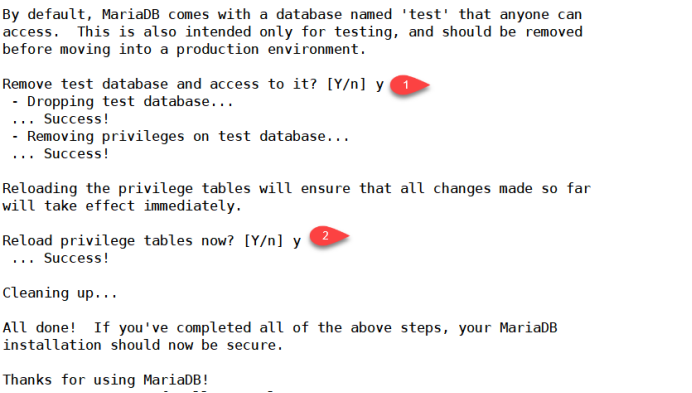
By default, MariaDB comes with a database named ‘test’ that anyone can
access. This is also intended only for testing, and should be removed
before moving into a production environment.
Remove test database and access to it? [Y/n] y 移除测试数据库吗?(原因:测试数据库泄露信息)
– Dropping test database…
… Success!
– Removing privileges on test database…
… Success!
Reloading the privilege tables will ensure that all changes made so far
will take effect immediately.
Reload privilege tables now? [Y/n] y 移除测试数据表吗
… Success!
Cleaning up…
All done! If you’ve completed all of the above steps, your MariaDB
installation should now be secure.
Thanks for using MariaDB!
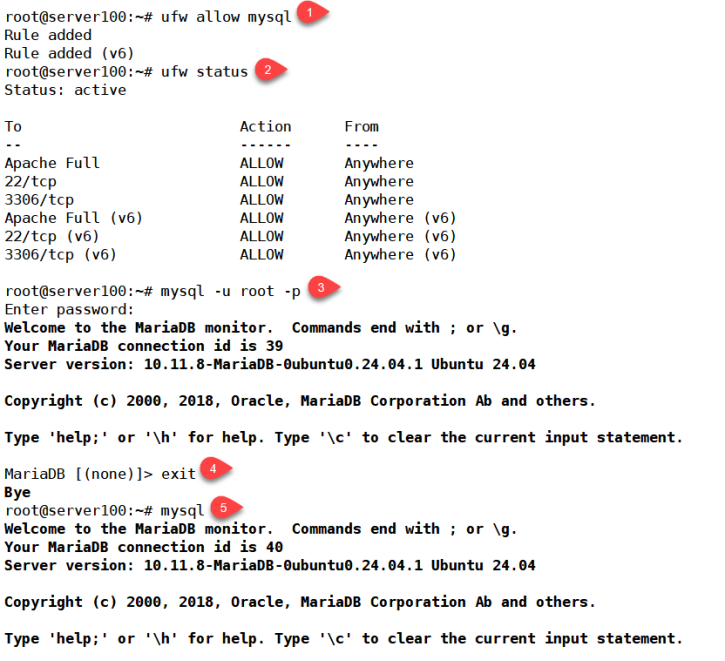
root@server100:~# ufw allow mysql 防火墙允许数据库通过
Rule added
Rule added (v6)
root@server100:~# ufw status 查看防火墙状态
Status: active
To Action From
— —— —-
Apache Full ALLOW Anywhere
22/tcp ALLOW Anywhere
3306/tcp ALLOW Anywhere 3306数据库端口号
Apache Full (v6) ALLOW Anywhere (v6)
22/tcp (v6) ALLOW Anywhere (v6)
3306/tcp (v6) ALLOW Anywhere (v6)
root@server100:~# mysql -u root -p 数据库管理员登陆
Enter password: 密码:1234.comC#
Welcome to the MariaDB monitor. Commands end with ; or \g.
Your MariaDB connection id is 39
Server version: 10.11.8-MariaDB-0ubuntu0.24.04.1 Ubuntu 24.04
Copyright (c) 2000, 2018, Oracle, MariaDB Corporation Ab and others.
Type ‘help;’ or ‘\h’ for help. Type ‘\c’ to clear the current input statement.
MariaDB [(none)]> exit 退出
Bye
root@server100:~# mysql 本地linux系统管理员登录数据库

MariaDB [(none)]> exit 退出
Bye
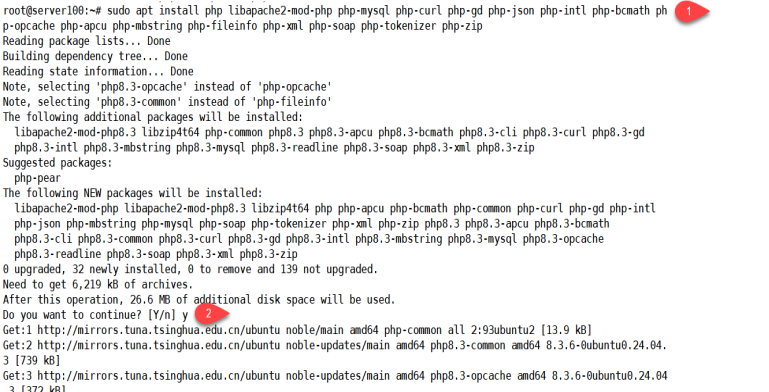
root@server100:~# sudo apt install php libapache2-mod-php php-mysql php-curl php-gd php-json php-intl php-bcmath php-opcache php-apcu php-mbstring php-fileinfo php-xml php-soap php-tokenizer php-zip 安装php编程语言及其插件
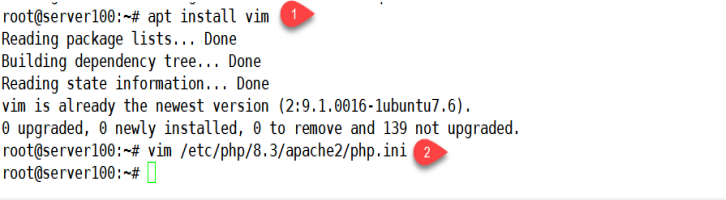
root@server100:~# apt install vim 安装vim编辑器
root@server100:~# vim /etc/php/8.3/apache2/php.ini 编辑php的配置文件

989 date.timezone = Asia/Shanghai 时区:亚洲上海

445 memory_limit = 256M 内存限制
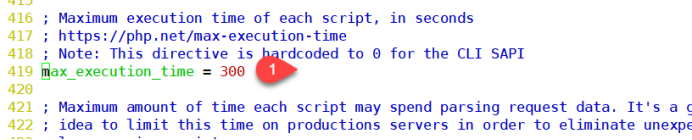
419 max_execution_time = 300 最大执行时间

865 upload_max_filesize = 64M 上传文件的最大容量

root@server100:~# vim /var/www/html/info.php 编辑php测试页面
<?php
phpinfo();
?> 为编辑测试页面里的内容
root@server100:~# systemctl restart apache2 重启阿帕奇2
root@server100:~# cd /var/www/html/ 进入阿帕奇2的网站目录
root@server100:/var/www/html# ls 查看
index.html info.php
root@server100:/var/www/html# rm -rf info.php 删除php的测试页面
到此一游