知识点:
docker images查看所有镜像
docker ps查看运行中的容器
docker ps -a查看所有状态的容器
docker history查看镜像的制作过程
docker run -it 临时启动一个容器
docker build -t通过dockerfile 制作镜像
docker commnit制作镜像
docker pull下载镜像
docker push 上传镜像
dcoker run -d 在后台运行一个容器
docker run -d -p 5000:5000在后台运行一个容器,将容器的5000的端口映射到Host主机上
docker run -d -p 5000:5000 -v /myregistory:/var/lib/docker 在后台运行一个容器,将容器的5000的端口映射到Host主机上,将容器的/var/lib/docker 目录映射到Host上
docker rmi删除镜像
docker rm删除容器 //必须先停止容器运行,然后才能删除
一、实验1 构建docker的私有仓库
仓库的目的:保存镜像
Push上传 pull拉取
[root@server12 ~]# docker pull registry 拉取仓库的镜像

[root@server12 ~]# docker images
REPOSITORY   TAG       IMAGE ID       CREATED         SIZE
registry     latest    3dec7d02aaea   2 months ago    57.7MB
nginx        1.26.0    94543a6c1aef   13 months ago   188MB
[root@server12 ~]#
[root@server12 ~]# vim /etc/docker/daemon.json  编辑dockers镜像源的配置文件
{
"insecure-registries":["192.168.7.12:5000"],
"registry-mirrors":[
"https://mirror.baidubce.com",
"https://9cpn8tt6.mirror.aliyuncs.com",
"https://registry.docker-cn.com",
"https://dockerproxy.com",
"https://mirror.baidubce.com",
"https://docker.m.daocloud.io",
"https://docker.nju.edu.cn",
"https://docker.1panel.live",
"https://hub.rat.dev",
"https://mirror-gcr.onrender.com",
"https://docker.mirrors.sjtug.sjtu.edu.cn",
"https://docker.mirrors.ustc.edu.cn",
"https://reg-mirror.qiniu.com",
"https://registry.docker-cn.com"
]
}[root@server12 ~]# systemctl restart docker 重启docker
[root@server12 ~]# docker run -d -p 5000:5000 -v /data/registry:/tmp/registry registry docker运行仓库的镜像,在后台生成仓库的容器,建立端口映射,宿主机的5000映射容器的5000
/data/registry宿主机的目录 :后容器的目录
f2ce31ee47230917cc2a4609a24d17d21cbe715e8239023e4fea497e89ffe41f
[root@server12 ~]#
[root@server12 ~]# docker images 查看端口映射
REPOSITORY TAG IMAGE ID CREATED SIZE
registry latest 3dec7d02aaea 2 months ago 57.7MB
nginx 1.26.0 94543a6c1aef 13 months ago 188MB
[root@server12 ~]# docker tag nginx:1.26.0 192.168.7.12:5000/nginx:1.26.0 给nginx:1.26.0镜像打标记
[root@server12 ~]#
[root@server12 ~]# docker images
REPOSITORY TAG IMAGE ID CREATED SIZE
registry latest 3dec7d02aaea 2 months ago 57.7MB
192.168.7.12:5000/nginx指向仓库的位置 1.26.0 94543a6c1aef 13 months ago 188MB
nginx 1.26.0 94543a6c1aef 13 months ago 188MB
[root@server12 ~]#
[root@server12 ~]# docker push 192.168.7.12:5000/nginx:1.26.0 nginx:1.26.0镜像上传到仓库里
The push refers to repository [192.168.7.12:5000/nginx]
55ee6a06cb8d: Pushed
619ad0127e6b: Pushed
7e7eba133fb8: Pushed
8fec15e62229: Pushed
abf5f31b6a0b: Pushed
b64902b7f501: Pushed
5d4427064ecc: Pushed
1.26.0: digest: sha256:433f8e57ead89502d08cf5bab5e1bb22760711ed29218d29ea520a5aac344672 size: 1778[root@server12 ~]# docker images
REPOSITORY TAG IMAGE ID CREATED SIZE
registry latest 3dec7d02aaea 2 months ago 57.7MB
nginx 1.26.0 94543a6c1aef 13 months ago 188MB
192.168.7.12:5000/nginx 1.26.0 94543a6c1aef 13 months ago 188MB
[root@server12 ~]#
[root@server12 ~]# curl 127.0.0.1:5000/v2/_catalog 查看仓库的内容
{"repositories":["nginx"]}
[root@server12 ~]#
[root@server12 ~]# docker rmi nginx:1.26.0 删除nginx的镜像
Untagged: nginx:1.26.0
Untagged: nginx@sha256:192e88a0053c178683ca139b9d9a2afb0ad986d171fae491949fe10970dd9da9
[root@server12 ~]# docker images
REPOSITORY TAG IMAGE ID CREATED SIZE
registry latest 3dec7d02aaea 2 months ago 57.7MB
192.168.7.12:5000/nginx 1.26.0 94543a6c1aef 13 months ago 188MB[root@server12 ~]# docker images
REPOSITORY TAG IMAGE ID CREATED SIZE
registry latest 3dec7d02aaea 2 months ago 57.7MB
192.168.7.12:5000/nginx 1.26.0 94543a6c1aef 13 months ago 188MB
[root@server12 ~]#
[root@server12 ~]# docker rmi 192.168.7.12:5000/nginx:1.26.0 删除打标记的镜像,上传前必须打标记
Untagged: 192.168.7.12:5000/nginx:1.26.0
Untagged: 192.168.7.12:5000/nginx@sha256:433f8e57ead89502d08cf5bab5e1bb22760711ed29218d29ea520a5aac344672
Deleted: sha256:94543a6c1aefa9dfe9b4686d815a0b4470663c2d5f9abfdc2dcf9ef03b59149a
Deleted: sha256:e9eff30b6a9a33eb26e2a65e1ada5e32fd82d8fea650e4aa12f861da6b8f0d7f
Deleted: sha256:7e68efa1498b7ad724cdb01922b8e91ea66717a2c00d04d621bd727778d31196
Deleted: sha256:f0840fe5287af0eb3fb8ca8b2693dfaedc92e29772604f1f32800297555a5637
Deleted: sha256:2c9a63f662ed1d10d5ad54ba720e1dbfa4a2b09d6f0a9ad9cbfa7e701bad25b1
Deleted: sha256:a25abc4196a82a70072dd67d08f8b2adc09ea71a63188ce0ffb8d5aae7133ea9
Deleted: sha256:09fbfd28794602bc5859e2481e898fe575169ce03eae4244fd9a26628f1060c2
Deleted: sha256:5d4427064ecc46e3c2add169e9b5eafc7ed2be7861081ec925938ab628ac0e25
[root@server12 ~]#
[root@server12 ~]# docker images
REPOSITORY TAG IMAGE ID CREATED SIZE
registry latest 3dec7d02aaea 2 months ago 57.7MB
[root@server12 ~]#
[root@server12 ~]# docker pull 192.168.7.12:5000/nginx:1.26.0 从仓库中拉取nginx:1.26.0的镜像
1.26.0: Pulling from nginx
09f376ebb190: Pull complete
78240426b67a: Pull complete
c08c0ae256e2: Pull complete
10463a6831a8: Pull complete
bd444d50f7de: Pull complete
8785af845a38: Pull complete
694e3980a1e1: Pull complete
Digest: sha256:433f8e57ead89502d08cf5bab5e1bb22760711ed29218d29ea520a5aac344672
Status: Downloaded newer image for 192.168.7.12:5000/nginx:1.26.0
192.168.7.12:5000/nginx:1.26.0
[root@server12 ~]#
[root@server12 ~]# docker images
REPOSITORY TAG IMAGE ID CREATED SIZE
registry latest 3dec7d02aaea 2 months ago 57.7MB
192.168.7.12:5000/nginx 1.26.0 94543a6c1aef 13 months ago 188MB 拉取成功二、实验2:docker存储
建立宿主机目录映射到容器的目录,宿主机存在容器存在,宿主机丢失,容器也将丢失。
[root@server12 ~]# docker pull httpd docker拉取http的镜像
Using default tag: latest
latest: Pulling from library/httpd
61320b01ae5e: Pull complete
be60498bea0a: Pull complete
4f4fb700ef54: Pull complete
8f86928406fd: Pull complete
162ef2c73af1: Pull complete
8dbbd44856ed: Pull complete
Digest: sha256:09cb4b94edaaa796522c545328b62e9a0db60315c7be9f2b4e02204919926405
Status: Downloaded newer image for httpd:latest
docker.io/library/httpd:latest
[root@server12 ~]#
[root@server12 ~]# docker images
REPOSITORY                TAG       IMAGE ID       CREATED         SIZE
registry                  latest    3dec7d02aaea   2 months ago    57.7MB
httpd                     latest    958373fdd7e8   4 months ago    148MB 拉取成功
192.168.7.12:5000/nginx   1.26.0    94543a6c1aef   13 months ago   188MB
[root@server12 ~]#
[root@server12 ~]# vim Dockerfile 书写内容
[root@server12 ~]# docker run -d -p 8080:80 -v /root/Dockerfile:/kun/Dockerfile httpd docker运行阿帕奇的镜像,在后台运行阿帕奇的容器。-d后台,-p端口,并建立端口映射,宿主机的80映射到容器的80.-v建立目录映射, 宿主机文件映射到容器的文件
/root/Dockerfile宿主机;/kun/Dockerfile容器
b70b20ab569467611988ec786643759ee320590be5c6569e6a4987dfbfda3e36
[root@server12 ~]#
[root@server12 ~]# docker ps
CONTAINER ID   IMAGE      COMMAND                  CREATED          STATUS          PORTS                                         NAMES
b70b20ab5694   httpd      "httpd-foreground"       10 seconds ago   Up 9 seconds    0.0.0.0:8080->80/tcp, [::]:8080->80/tcp       unruffled_elion
f2ce31ee4723   registry   "/entrypoint.sh /etc…"   48 minutes ago   Up 48 minutes   0.0.0.0:5000->5000/tcp, [::]:5000->5000/tcp   xenodochial_satoshi
[root@server12 ~]#
[root@server12 ~]# docker exec -it b70b20ab5694 bash 进入阿帕奇的容器里
root@b70b20ab5694:/usr/local/apache2# cd
root@b70b20ab5694:~# ls
root@b70b20ab5694:~# cd /
root@b70b20ab5694:/# ls
bin   dev  home  lib    media  opt   root  sbin  sys  usr
boot  etc  kun   lib64  mnt    proc  run   srv   tmp  var
root@b70b20ab5694:/# cat kun/Dockerfile 查看kun目录下dockerfile文件
iFROM rockylinux:9.2
RUN yum install -y tree
WORKDIR /boot
RUN touch file1
root@b70b20ab5694:/# read escape sequence ctrl+p+q 退出三、使用阿帕奇的镜像生成httpd容器 第一种:
建立目录映射和端口映射,目的从宿主机修改,就不用上容器里改。
[root@server12 ~]# docker run -d -p 8888:80 -v /root/htdocs:/usr/local/apache2/htdocs httpd 宿主机的88映射到容器的80.-v建立目录映射, 宿主机文件映射到容器的文件
649aa687c7012535d96b1ce6783837c1aa78f3a5ba439f52147c297795111caf
[root@server12 ~]#
[root@server12 ~]# docker ps
CONTAINER ID   IMAGE      COMMAND                  CREATED          STATUS          PORTS                                         NAMES
649aa687c701   httpd      "httpd-foreground"       6 seconds ago    Up 6 seconds    0.0.0.0:8888->80/tcp, [::]:8888->80/tcp       lucid_wiles
b70b20ab5694   httpd      "httpd-foreground"       8 minutes ago    Up 8 minutes    0.0.0.0:8080->80/tcp, [::]:8080->80/tcp       unruffled_elion
f2ce31ee4723   registry   "/entrypoint.sh /etc…"   56 minutes ago   Up 56 minutes   0.0.0.0:5000->5000/tcp, [::]:5000->5000/tcp   xenodochial_satoshi
[root@server12 ~]#
[root@server12 ~]# curl 127.0.0.1:8888
<!DOCTYPE HTML PUBLIC "-//W3C//DTD HTML 3.2 Final//EN">
<html>
 <head>
  <title>Index of /</title>
 </head>
 <body>
<h1>Index of /</h1>
<ul></ul>
</body></html>
[root@server12 ~]# echo "hello world" /root/htdocs/index.html
hello world /root/htdocs/index.html
[root@server12 ~]#
[root@server12 ~]# echo "hello world" > /root/htdocs/index.html
[root@server12 ~]#
[root@server12 ~]# curl 127.0.0.1:8888 宿主机访问容器的阿帕奇
hello world
[root@server12 ~]# docker exec -it 649aa687c701 bash 在宿主机更改内容会同步到容器目录下建立一对一映射
root@649aa687c701:/usr/local/apache2# ls
bin  build  cgi-bin  conf  error  htdocs  icons  include  logs  modules
root@649aa687c701:/usr/local/apache2# cat htdocs/index.html 查看阿帕奇容器里的测试页面
hello world
root@649aa687c701:/usr/local/apache2# read escape sequence
[root@server12 ~]#
加只读权限,不允许更改容器目录权限:
[root@server12 ~]# docker run -d -p 8081:80 -v /root/htdocs:/usr/local/apache2/htdocs:ro httpd
docker运行阿帕奇的镜像,在后台生成阿帕奇的容器,建立端口映射,宿主机的81映射到容器的80.建立目录映射,宿主机文件映射到容器的文件,在容器的目录下添加只读权限。
6bb772360b253be39601d087a03f0c0a35ab4823d658ef51b0127bbc84c539e1
[root@server12 ~]#
[root@server12 ~]# docker ps
CONTAINER ID IMAGE COMMAND CREATED STATUS PORTS NAMES
6bb772360b25 httpd "httpd-foreground" 7 seconds ago Up 7 seconds 0.0.0.0:8081->80/tcp, [::]:8081->80/tcp sharp_borg
649aa687c701 httpd "httpd-foreground" 11 minutes ago Up 11 minutes 0.0.0.0:8888->80/tcp, [::]:8888->80/tcp lucid_wiles
b70b20ab5694 httpd "httpd-foreground" 19 minutes ago Up 19 minutes 0.0.0.0:8080->80/tcp, [::]:8080->80/tcp unruffled_elion
f2ce31ee4723 registry "/entrypoint.sh /etc…" About an hour ago Up About an hour 0.0.0.0:5000->5000/tcp, [::]:5000->5000/tcp xenodochial_satoshi
[root@server12 ~]#
[root@server12 ~]# docker exec -it 6bb772360b25 bash 进入到阿帕奇的容器里
root@6bb772360b25:/usr/local/apache2# ls
bin build cgi-bin conf error htdocs icons include logs modules
root@6bb772360b25:/usr/local/apache2# cd htdocs/ 进入到阿帕奇的目录下
root@6bb772360b25:/usr/local/apache2/htdocs# ls
index.html
root@6bb772360b25:/usr/local/apache2/htdocs# echo "111111" > index.html 向测试页面写入1111的内容
bash: index.html: Read-only file system 写不进去,只读文件系统,只能看不能写。
root@6bb772360b25:/usr/local/apache2/htdocs# exit
exit
不指向:直接指向容器[root@server12 ~]# docker run -d -p 8081:80 -v /root/htdocs:/usr/local/apache2/htdocs:ro httpd
docker运行阿帕奇的镜像,在后台生成阿帕奇的容器,建立端口映射,宿主机的81映射到容器的80.建立目录映射,宿主机文件映射到容器的文件,在容器的目录下添加只读权限。
6bb772360b253be39601d087a03f0c0a35ab4823d658ef51b0127bbc84c539e1
[root@server12 ~]#
[root@server12 ~]# docker ps
CONTAINER ID IMAGE COMMAND CREATED STATUS PORTS NAMES
6bb772360b25 httpd "httpd-foreground" 7 seconds ago Up 7 seconds 0.0.0.0:8081->80/tcp, [::]:8081->80/tcp sharp_borg
649aa687c701 httpd "httpd-foreground" 11 minutes ago Up 11 minutes 0.0.0.0:8888->80/tcp, [::]:8888->80/tcp lucid_wiles
b70b20ab5694 httpd "httpd-foreground" 19 minutes ago Up 19 minutes 0.0.0.0:8080->80/tcp, [::]:8080->80/tcp unruffled_elion
f2ce31ee4723 registry "/entrypoint.sh /etc…" About an hour ago Up About an hour 0.0.0.0:5000->5000/tcp, [::]:5000->5000/tcp xenodochial_satoshi
[root@server12 ~]#
[root@server12 ~]# docker exec -it 6bb772360b25 bash 进入到阿帕奇的容器里
root@6bb772360b25:/usr/local/apache2# ls
bin build cgi-bin conf error htdocs icons include logs modules
root@6bb772360b25:/usr/local/apache2# cd htdocs/ 进入到阿帕奇的目录下
root@6bb772360b25:/usr/local/apache2/htdocs# ls
index.html
root@6bb772360b25:/usr/local/apache2/htdocs# echo "111111" > index.html 向测试页面写入1111的内容
bash: index.html: Read-only file system 写不进去,只读文件系统,只能看不能写。
root@6bb772360b25:/usr/local/apache2/htdocs# exit
Exit
[root@server12 ~]# docker run -d -p 8082:80 -v /usr/local/apache2/htdocs httpd
docker运行阿帕奇的镜像,在后台生成阿帕奇的容器,建立端口映射,宿主机的82映射到容器的80.建立目录映射,宿主机文件映射到容器的文件,在容器的目录下添加只读权限。-v直接指定容器的目录,-d:后台运行,-p:将容器的5000的端口
a019d8f16a079436bf884f180c24b1a0daf58864c5395cad41f64d81091e5c49
[root@server12 ~]#
[root@server12 ~]# docker ps 查看运行的容器
CONTAINER ID IMAGE COMMAND CREATED STATUS PORTS NAMES
a019d8f16a07 httpd "httpd-foreground" 5 seconds ago Up 4 seconds 0.0.0.0:8082->80/tcp, [::]:8082->80/tcp epic_kalam
[root@server12 ~]# docker inspect a019d8f16a07 查看阿帕奇容器的详细信息,没建立目录映射,直接指向容器的目录 "Mounts": [ 挂载
{
"Type": "volume",
"Name": "defc2de2c44f9ebdf131ec570099112478ec16e3d798693f5f7ec25b51ea140f",
"Source": "/var/lib/docker/volumes/defc2de2c44f9ebdf131ec570099112478ec16e3d798693f5f7ec25b51ea140f/_data",
Source宿主机的源路径
"Destination": "/usr/local/apache2/htdocs",
Destination容器的目录
"Driver": "local",
"Mode": "",
"RW": true,
"Propagation": ""
}
],[root@server12 ~]# cd /var/lib/docker/volumes/defc2de2c44f9ebdf131ec570099112478ec16e3d798693f5f7ec25b51ea140f/_data
进入阿帕奇宿主机的目录下
[root@server12 _data]# ls
index.html
[root@server12 _data]# cat index.html 查看测试页面的内容
<html><body><h1>It works!</h1></body></html> It works!
[root@server12 _data]# curl 127.0.0.1:8082
<html><body><h1>It works!</h1></body></html>
[root@server12 _data]#
[root@server12 _data]# echo "1111111111" > index.html 修改测试页面
[root@server12 _data]#
[root@server12 _data]# curl 127.0.0.1:8082 在宿主机下访问阿帕奇的容器(curl字符访问阿帕奇页面)四、实验3:创建镜像的方法:基于本地模板的创建(Dockerfile文件 重点)
[root@server12 ~]# cat centos-7-x86_64-minimal.tar.gz | docker import - centos7 将centos7模板导入到docker里
sha256:05fc8c78bcf67d6aed83ca7d8e23d7bb166649c801dc9569a76c490eb678fb80
[root@server12 ~]#
[root@server12 ~]# docker images
REPOSITORY                TAG       IMAGE ID       CREATED         SIZE
centos7                   latest    05fc8c78bcf6   5 seconds ago   435MB
registry                  latest    3dec7d02aaea   2 months ago    57.7MB
httpd                     latest    958373fdd7e8   4 months ago    148MB
192.168.7.12:5000/nginx   1.26.0    94543a6c1aef   13 months ago   188MB
[root@server12 ~]#
[root@server12 ~]# docker run -itd centos7 bash docker在后台运行 centos7镜像,运行centos7 容器
4f089754ba4ddf5b77f00d5181b54ac85ea1b2f4edff79f55b02cd7270a946b7
[root@server12 ~]#
[root@server12 ~]# docker ps
CONTAINER ID   IMAGE      COMMAND                  CREATED          STATUS          PORTS                                         NAMES
4f089754ba4d   centos7    "bash"                   10 seconds ago   Up 9 seconds                                                  magical_meninsky
a019d8f16a07   httpd      "httpd-foreground"       34 minutes ago   Up 34 minutes   0.0.0.0:8082->80/tcp, [::]:8082->80/tcp       epic_kalam
6bb772360b25   httpd      "httpd-foreground"       38 minutes ago   Up 38 minutes   0.0.0.0:8081->80/tcp, [::]:8081->80/tcp       sharp_borg
649aa687c701   httpd      "httpd-foreground"       50 minutes ago   Up 50 minutes   0.0.0.0:8888->80/tcp, [::]:8888->80/tcp       lucid_wiles
b70b20ab5694   httpd      "httpd-foreground"       58 minutes ago   Up 58 minutes   0.0.0.0:8080->80/tcp, [::]:8080->80/tcp       unruffled_elion
f2ce31ee4723   registry   "/entrypoint.sh /etc…"   2 hours ago      Up 2 hours      0.0.0.0:5000->5000/tcp, [::]:5000->5000/tcp   xenodochial_satoshi
[root@server12 ~]#
[root@server12 ~]# docker exec -it 4f089754ba4d bash 进入到centos7 容器
[root@4f089754ba4d /]# uname -r 宿主机的内核
5.14.0-503.14.1.el9_5.x86_64
[root@4f089754ba4d /]#
[root@4f089754ba4d /]# cat /etc/redhat-release  查看系统版本
CentOS Linux release 7.2.1511 (Core)
[root@4f089754ba4d /]# exit
exit
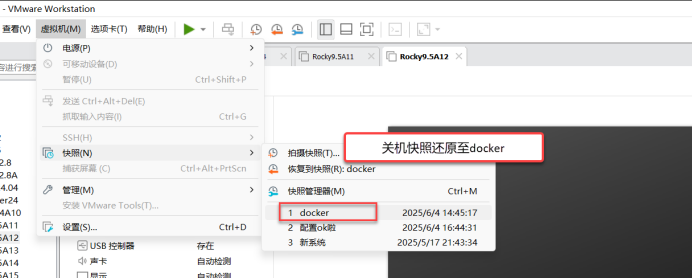
4.1 server12关机拍快照
[root@server12 ~]# mkdir apache
[root@server12 ~]#
[root@server12 ~]# cd apache/
[root@server12 apache]# vim Dockerfile  创建dockerfile 文件
FROM rockylinux:9.2 		使用rockylinux:9.2镜像
LABEL maintainer="lee <2823629811@qq.com>"   <2823629811@qq.com>" 指定作者信息
RUN dnf -y install httpd  	执行命令安装阿帕奇
RUN echo "Hello DockerFile" > /var/www/html/index.html		执行命令创建阿帕奇的测试页面
EXPOSE 80				指定外界交互的端口为80
CMD ["-D", "FOREGROUND"]		构建容器后在后台调用程序
ENTRYPOINT ["/usr/sbin/httpd"]	配置容器时执行启动阿帕奇


[root@server12 apache]# vim run.sh		创建run.sh脚本

#!/bin/bash
rm -rf /run/httpd/*			清理阿帕奇运行时的文件
exec /usr/sbin/apachectl -D FOREGROUND  替换当前进程启动阿帕奇


[root@server12 apache]# docker build -t httpd:rockylinux .			dockers使用dockerfile文件生成阿帕奇的镜像
[+] Building 39.7s (7/7) FINISHED                                                docker:default
 => [internal] load build definition from Dockerfile                                       0.0s
 => => transferring dockerfile: 248B                                                       0.0s
 => [internal] load metadata for docker.io/library/rockylinux:9.2                         22.5s
 => [internal] load .dockerignore                                                          0.0s
 => => transferring context: 2B                                                            0.0s
 => CACHED [1/3] FROM docker.io/library/rockylinux:9.2@sha256:b07e21a7bbcecbae55b9153317d  0.0s
 => [2/3] RUN dnf -y install httpd                                                        16.2s
 => [3/3] RUN echo "Hello DockerFile" > /var/www/html/index.html                           0.3s
 => exporting to image                                                                     0.7s
 => => exporting layers                                                                    0.6s
 => => writing image sha256:b8ff91fdd16d3d8c0cc40a92acaa0d57b458bd95820209eb81b68750341f8  0.0s
 => => naming to docker.io/library/httpd:rockylinux                                        0.0s
[root@server12 apache]#
[root@server12 apache]# docker images			查看dockers镜像
REPOSITORY   TAG          IMAGE ID       CREATED         SIZE
httpd        rockylinux   b8ff91fdd16d   9 seconds ago   234MB
nginx        1.26.0       94543a6c1aef   13 months ago   188MB
[root@server12 apache]#
[root@server12 apache]# docker run -d -p 80:80 httpd:rockylinux		docker运行阿帕奇的镜像,在后台生成阿帕奇的容器,并建立端口映射,宿主机80映射容器80
4ab92b1676e74a756080538a74a09968737e95762b66417e9c6c52954ac65d3c
[root@server12 apache]#
[root@server12 apache]# docker ps			查看运行的容器
CONTAINER ID   IMAGE              COMMAND                  CREATED         STATUS         PORTS                                 NAMES
4ab92b1676e7   httpd:rockylinux   "/usr/sbin/httpd -D …"   4 seconds ago   Up 3 seconds   0.0.0.0:80->80/tcp, [::]:80->80/tcp   nervous_swirles