一、实验环境:
Rocky12、Rocky11还原至新系统,开机。
二、安装docker
[root@Server12 ~]# yum install -y yum-utils device-mapper-persistent-data lvm2  安装dockers的插件

Rocky Linux 9 - BaseOS                                                    357 kB/s | 2.3 MB     00:06

Rocky Linux 9 - AppStream                                                 406 kB/s | 8.4 MB     00:21

Rocky Linux 9 - Extras                                                    6.2 kB/s |  16 kB     00:02

Package device-mapper-persistent-data-1.0.9-3.el9_4.x86_64 is already installed.

Package lvm2-9:2.03.24-2.el9.x86_64 is already installed.

Dependencies resolved.

==========================================================================================================

 Package                  Architecture          Version                       Repository             Size

==========================================================================================================

Installing:

 yum-utils                noarch                4.3.0-16.el9                  baseos                 35 k

Transaction Summary

==========================================================================================================

Install  1 Package

Total download size: 35 k

Installed size: 23 k

Downloading Packages:

yum-utils-4.3.0-16.el9.noarch.rpm                                          83 kB/s |  35 kB     00:00

----------------------------------------------------------------------------------------------------------

Total                                                                      28 kB/s |  35 kB     00:01

Rocky Linux 9 - BaseOS                                                    1.7 MB/s | 1.7 kB     00:00

Importing GPG key 0x350D275D:

 Userid     : "Rocky Enterprise Software Foundation - Release key 2022 <releng@rockylinux.org>"

 Fingerprint: 21CB 256A E16F C54C 6E65 2949 702D 426D 350D 275D

 From       : /etc/pki/rpm-gpg/RPM-GPG-KEY-Rocky-9

Key imported successfully

Running transaction check

Transaction check succeeded.

Running transaction test

Transaction test succeeded.

Running transaction

  Preparing        :                                                                                  1/1

  Installing       : yum-utils-4.3.0-16.el9.noarch                                                    1/1

  Running scriptlet: yum-utils-4.3.0-16.el9.noarch                                                    1/1

  Verifying        : yum-utils-4.3.0-16.el9.noarch                                                    1/1

Installed:

  yum-utils-4.3.0-16.el9.noarch

Complete!
[root@Server12 ~]# yum config-manager --add-repo=https://mirrors.aliyun.com/docker-ce/linux/centos/docker-ce.repo 下载docker的数据源
Adding repo from: https://mirrors.aliyun.com/docker-ce/linux/centos/docker-ce.repo
[root@Server12 ~]#
[root@Server12 ~]# dnf -y install docker-ce 安装docker社区版
Docker CE Stable - x86_64 15 kB/s | 73 kB 00:04
Last metadata expiration check: 0:00:02 ago on Wed 04 Jun 2025 02:24:31 PM CST.
Dependencies resolved.[root@Server12 ~]# systemctl enable --now docker 启动docker并设置dockers开机启动
Created symlink /etc/systemd/system/multi-user.target.wants/docker.service → /usr/lib/systemd/system/docker.service.
[root@Server12 ~]# [root@Server12 ~]# vim /etc/docker/daemon.json 创建docker镜像加速器
[root@Server12 ~]#
{
"registry-mirrors":[
"https://mirror.baidubce.com",
"https://9cpn8tt6.mirror.aliyuncs.com",
"https://registry.docker-cn.com",
"https://dockerproxy.com",
"https://mirror.baidubce.com",
"https://docker.m.daocloud.io",
"https://docker.nju.edu.cn",
"https://docker.1panel.live",
"https://hub.rat.dev",
"https://mirror-gcr.onrender.com",
"https://docker.mirrors.sjtug.sjtu.edu.cn",
"https://docker.mirrors.ustc.edu.cn",
"https://reg-mirror.qiniu.com",
"https://registry.docker-cn.com"
]
}
[root@Server12 ~]# systemctl restart docker 重启docker
[root@Server12 ~]# 三、拉取镜像:
[root@Server12 ~]# docker pull nginx:1.26.0  docker拉取nginx:1.26.0的镜像
1.26.0: Pulling from library/nginx
09f376ebb190: Pull complete
78240426b67a: Pull complete
c08c0ae256e2: Pull complete
10463a6831a8: Pull complete
bd444d50f7de: Pull complete
8785af845a38: Pull complete
694e3980a1e1: Pull complete
Digest: sha256:192e88a0053c178683ca139b9d9a2afb0ad986d171fae491949fe10970dd9da9
Status: Downloaded newer image for nginx:1.26.0
docker.io/library/nginx:1.26.0
[root@Server12 ~]# docker images		查看dockers镜像
REPOSITORY   TAG       IMAGE ID       CREATED         SIZE
nginx        1.26.0    94543a6c1aef   13 months ago   188MB
[root@Server12 ~]#
[root@Server12 ~]# shutdown -h now
Connection closing...Socket close.

Connection closed by foreign host.

Disconnected from remote host(192.168.7.12) at 14:44:26.

Type `help' to learn how to use Xshell prompt.
[C:\~]$
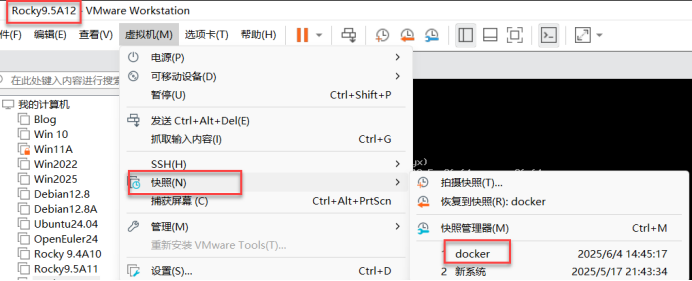
四、拍摄快照:
五、拉取rockylinux、ubuntu镜像
[root@Server12 ~]# docker pull rockylinux:9.2  dockers拉取rockylinux:9.2的镜像
9.2: Pulling from library/rockylinux
1a5eb4db1701: Pull complete
Digest: sha256:b07e21a7bbcecbae55b9153317d333d4d50808bf5dc0859db0180b6fbd7afb3d
Status: Downloaded newer image for rockylinux:9.2
docker.io/library/rockylinux:9.2
[root@Server12 ~]# docker pull ubuntu  docker拉取ubuntu的镜像
Using default tag: latest
[root@Server12 ~]# docker images 查看dockers镜像
REPOSITORY TAG IMAGE ID CREATED SIZE
ubuntu latest bf16bdcff9c9 6 days ago 78.1MB
nginx 1.26.0 94543a6c1aef 13 months ago 188MB
rockylinux 9.2 eeea865f4111 2 years ago 176MB
[root@Server12 ~]# 六、运行镜像、生成容器
[root@Server12 ~]# docker run -it rockylinux:9.2 bash
docker运行rockylinux:9.2的镜像生成容器,并进入容器里
it 以交互模式进入容器,并打开终端,-i 让容器的输入保持打开,-t让容器分配一个伪终端
[root@e59afb4cf5d1 /]# uname -r  查看系统内核
5.14.0-503.14.1.el9_5.x86_64
[root@e59afb4cf5d1 /]# cat /etc/redhat-release 	 查看系统版本
Rocky Linux release 9.2 (Blue Onyx)   真实机内核
[root@e59afb4cf5d1 /]#
[root@e59afb4cf5d1 /]# exit   		退出容器,停止运行
exit
[root@Server12 ~]#
[root@Server12 ~]# docker ps		查看正在运行的容器(无)
CONTAINER ID   IMAGE     COMMAND   CREATED   STATUS    PORTS     NAMES
[root@Server12 ~]# docker ps -a		查看所有容器(运行的和停止的)
CONTAINER ID   IMAGE            COMMAND   CREATED          STATUS                     PORTS     NAMES
e59afb4cf5d1   rockylinux:9.2   "bash"    52 seconds ago   Exited 停止的(0) 8 seconds ago             boring_jennings
[root@Server12 ~]#
[root@Server12 ~]# docker run -it ubuntu bash 运行Ubuntu的镜像,生成Ubuntu的容器,并进入容器里
root@f9f75b7ef6e9:/# uname -r 查看内核
5.14.0-503.14.1.el9_5.x86_64 真实机的内核
root@f9f75b7ef6e9:/# cat /etc/os-release 查看系统版本
PRETTY_NAME="Ubuntu 24.04.2 LTS" Ubuntu 版本24.04.2
NAME="Ubuntu"
VERSION_ID="24.04"
VERSION="24.04.2 LTS (Noble Numbat)"
VERSION_CODENAME=noble
ID=ubuntu
ID_LIKE=debian
HOME_URL="https://www.ubuntu.com/"
SUPPORT_URL="https://help.ubuntu.com/"
BUG_REPORT_URL="https://bugs.launchpad.net/ubuntu/"
PRIVACY_POLICY_URL="https://www.ubuntu.com/legal/terms-and-policies/privacy-policy"
UBUNTU_CODENAME=noble
LOGO=ubuntu-logo
root@f9f75b7ef6e9:/# [root@Server12 ~]# 另一种退出容器的方法:ctrl+p+q;退出容器,容器仍在运行
CONTAINER ID IMAGE COMMAND CREATED STATUS PORTS NAMES
f9f75b7ef6e9 ubuntu "bash" 2 minutes ago Up 2 minutes eloquent_franklin
[root@Server12 ~]# docker ps 查看正在运行的容器
[root@Server12 ~]# docker ps -a   查看所有容器
CONTAINER ID   IMAGE            COMMAND   CREATED          STATUS                      PORTS     NAMES
f9f75b7ef6e9   ubuntu           "bash"    8 minutes ago    Up 8 minutes                          eloquent_franklin
e59afb4cf5d1   rockylinux:9.2   "bash"    12 minutes ago   Exited (0) 11 minutes ago             boring_jennings
[root@Server12 ~]# docker start e59afb4cf5d1   docker启动rocky9.4的容器;e59afb4cf5d1容器的ID号
e59afb4cf5d1
[root@Server12 ~]# docker ps 查看所有容器
CONTAINER ID   IMAGE            COMMAND   CREATED          STATUS          PORTS     NAMES
f9f75b7ef6e9   ubuntu           "bash"    9 minutes ago    Up  活动的  9 minutes              eloquent_franklin
e59afb4cf5d1   rockylinux:9.2   "bash"    12 minutes ago   Up活动的  10 seconds             boring_jennings
[root@Server12 ~]# docker stop f9f75b7ef6e9   docker 关闭Ubuntu的容器(ubuntu 容器的ID: f9f75b7ef6e9)
f9f75b7ef6e9
[root@Server12 ~]# docker ps  Ubuntu容器没了
CONTAINER ID   IMAGE            COMMAND   CREATED          STATUS          PORTS     NAMES
e59afb4cf5d1   rockylinux:9.2   "bash"    13 minutes ago   Up活动的  55 seconds             boring_jennings
[root@Server12 ~]# 七、删除镜像,删除容器
[root@Server12 ~]# docker rmi nginx:1.26.0		删除nginx:1.26.0镜像,(rm删除容器)
Untagged: nginx:1.26.0
Untagged: nginx@sha256:192e88a0053c178683ca139b9d9a2afb0ad986d171fae491949fe10970dd9da9
Deleted: sha256:94543a6c1aefa9dfe9b4686d815a0b4470663c2d5f9abfdc2dcf9ef03b59149a
Deleted: sha256:e9eff30b6a9a33eb26e2a65e1ada5e32fd82d8fea650e4aa12f861da6b8f0d7f
Deleted: sha256:7e68efa1498b7ad724cdb01922b8e91ea66717a2c00d04d621bd727778d31196
Deleted: sha256:f0840fe5287af0eb3fb8ca8b2693dfaedc92e29772604f1f32800297555a5637
Deleted: sha256:2c9a63f662ed1d10d5ad54ba720e1dbfa4a2b09d6f0a9ad9cbfa7e701bad25b1
Deleted: sha256:a25abc4196a82a70072dd67d08f8b2adc09ea71a63188ce0ffb8d5aae7133ea9
Deleted: sha256:09fbfd28794602bc5859e2481e898fe575169ce03eae4244fd9a26628f1060c2
Deleted: sha256:5d4427064ecc46e3c2add169e9b5eafc7ed2be7861081ec925938ab628ac0e25
[root@Server12 ~]# docker images			nginx镜像没了
REPOSITORY   TAG       IMAGE ID       CREATED       SIZE
ubuntu       latest    bf16bdcff9c9   6 days ago    78.1MB
rockylinux   9.2       eeea865f4111   2 years ago   176MB
[root@Server12 ~]# docker ps -a				查看所有容器
CONTAINER ID   IMAGE            COMMAND   CREATED          STATUS                        PORTS     NAMES
f9f75b7ef6e9   ubuntu           "bash"    43 minutes ago   Exited (137) 停止的33 minutes ago             eloquent_franklin
e59afb4cf5d1   rockylinux:9.2   "bash"    46 minutes ago   Up 34 minutes                           boring_jennings
[root@server12 ~]# docker ps -a 查看所有容器
CONTAINER ID   IMAGE            COMMAND   CREATED          STATUS                        PORTS     NAMES
5d80f3d979e6   ubuntu           "bash"    40 minutes ago   Exited (137) 30 minutes ago             eager_engelbart
3a19cc74837c   rockylinux:9.2   "bash"    43 minutes ago   Up 31 minutes                           focused_heyrovsky
[root@server12 ~]#
[root@server12 ~]# docker rm 3a19cc74837c 删除rockylinux:9.2容器
Error response from daemon: cannot remove container "3a19cc74837c": container is running: stop the container before removing or force remove
容器正在运行时,删不掉

[root@server12 ~]# docker stop 3a19cc74837c	关闭rockylinux:9.2的容器
3a19cc74837c
[root@server12 ~]# docker ps -a	查看运行的所有容器
CONTAINER ID   IMAGE            COMMAND   CREATED          STATUS                        PORTS     NAMES
5d80f3d979e6   ubuntu           "bash"    41 minutes ago   Exited (137) 31 minutes ago             eager_engelbart
3a19cc74837c   rockylinux:9.2   "bash"    44 minutes ago   Exited (137) 10 seconds ago             focused_heyrovsky


[root@server12 ~]# docker rm 3a19cc74837c	删除rockylinux:9.2的容器
3a19cc74837c
[root@server12 ~]#
[root@server12 ~]# docker ps -a 查看所有容器,rockylinux:9.2的容器没了
CONTAINER ID   IMAGE     COMMAND   CREATED          STATUS                        PORTS     NAMES
5d80f3d979e6   ubuntu    "bash"    42 minutes ago   Exited (137) 32 minutes ago             eager_engelbart
[root@Server12 ~]# docker start f9f75b7ef6e9 启动Ubuntu的容器
f9f75b7ef6e9
[root@Server12 ~]# docker ps 查看正在运行的容器
CONTAINER ID IMAGE COMMAND CREATED STATUS PORTS NAMES
f9f75b7ef6e9 ubuntu "bash" 50 minutes ago Up 4 seconds eloquent_franklin
[root@Server12 ~]# [root@Server12 ~]# docker exec -it f9f75b7ef6e9 bash 进入Ubuntu的容器里
root@f9f75b7ef6e9:/# cat /etc/os-release
PRETTY_NAME="Ubuntu 24.04.2 LTS"
NAME="Ubuntu"
VERSION_ID="24.04"
VERSION="24.04.2 LTS (Noble Numbat)"
VERSION_CODENAME=noble
ID=ubuntu
ID_LIKE=debian
HOME_URL="https://www.ubuntu.com/"
SUPPORT_URL="https://help.ubuntu.com/"
BUG_REPORT_URL="https://bugs.launchpad.net/ubuntu/"
PRIVACY_POLICY_URL="https://www.ubuntu.com/legal/terms-and-policies/privacy-policy"
UBUNTU_CODENAME=noble
LOGO=ubuntu-logo
root@f9f75b7ef6e9:/# read escape sequence 退出容器ctrl+p+q
[root@Server12 ~]# docker images
REPOSITORY TAG IMAGE ID CREATED SIZE
ubuntu latest bf16bdcff9c9 6 days ago 78.1MB
rockylinux 9.2 eeea865f4111 2 years ago 176MB
[root@Server12 ~]# docker save -o rockylinux9.2.tar
docker: 'docker save' requires at least 1 argument
Usage: docker save [OPTIONS] IMAGE [IMAGE...]
See 'docker save --help' for more information
[root@Server12 ~]# docker save -o rockylinux9.2.tar rockylinux:9.2 将rockylinux的镜像保存到当前
[root@Server12 ~]#
[root@Server12 ~]# ls
anaconda-ks.cfg rockylinux9.2.tar
[root@Server12 ~]# docker save -o ubuntu24.04.tar ubuntu:latest 将ubuntu的镜像保存到当前目录下
[root@Server12 ~]# ls
anaconda-ks.cfg rockylinux9.2.tar ubuntu24.04.tar
[root@Server12 ~]# [root@server11 ~]# yum install -y yum-utils device-mapper-persistent-data lvm2
[root@server11 ~]# yum config-manager --add-repo=https://mirrors.aliyun.com/docker-ce/linux/centos/docker-ce.repo
Adding repo from: https://mirrors.aliyun.com/docker-ce/linux/centos/docker-ce.repo
[root@server11 ~]# dnf -y install docker-ce
Docker CE Stable - x86_64 183 kB/s | 73 kB 00:00
Dependencies resolved.
[root@server11 ~]# systemctl enable --now docker
Created symlink /etc/systemd/system/multi-user.target.wants/docker.service → /usr/lib/systemd/system/docker.service.
[root@server11 ~]# vim /etc/docker/daemon.json
[root@server11 ~]# systemctl restart docker
[root@server11 ~]# docker pull nginx:1.26.0
1.26.0: Pulling from library/nginx
09f376ebb190: Pull complete
78240426b67a: Pull complete
c08c0ae256e2: Pull complete
10463a6831a8: Pull complete
bd444d50f7de: Pull complete
8785af845a38: Pull complete
694e3980a1e1: Pull complete
Digest: sha256:192e88a0053c178683ca139b9d9a2afb0ad986d171fae491949fe10970dd9da9
Status: Downloaded newer image for nginx:1.26.0
docker.io/library/nginx:1.26.0
[root@server11 ~]#
[root@server11 ~]# docker images
REPOSITORY TAG IMAGE ID CREATED SIZE
nginx 1.26.0 94543a6c1aef 13 months ago 188MB
[root@server11 ~]# shutdown -h now
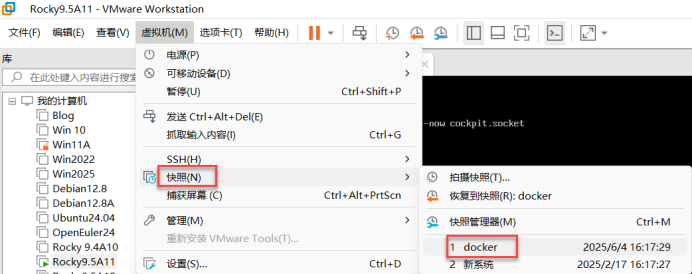
Connection closing...Socket close.八、Rocky11安装docker,配置并拍摄docker快照
九、查看镜像:
[root@Server12 ~]#
[root@Server12 ~]# ls
anaconda-ks.cfg  rockylinux9.2.tar  ubuntu24.04.tar
[root@Server12 ~]# scp rockylinux9.2.tar 192.168.7.10:/root
ssh: connect to host 192.168.7.10 port 22: No route to host
Connection closed
[root@Server12 ~]# scp rockylinux9.2.tar 192.168.7.11:/root
将rockylinux9.2的镜像压缩文件文件,远程复制到192.168.7.10的root目录下
The authenticity of host '192.168.7.11 (192.168.7.11)' can't be established.
ED25519 key fingerprint is SHA256:xUDA0O+t2CzJjkoXTnPz4uWZHLsBka7X2jWeyssMSNo.
This key is not known by any other names
Are you sure you want to continue connecting (yes/no/[fingerprint])? yes
Warning: Permanently added '192.168.7.11' (ED25519) to the list of known hosts.
root@192.168.7.11's password:
rockylinux9.2.tar                                                       100%  173MB  92.7MB/s   00:01
[root@Server12 ~]# scp ubuntu24.04.tar 192.168.7.11:/root
将Ubuntu的镜像压缩文件文件,远程复制到192.168.7.10:/root目录下
root@192.168.7.11's password:
ubuntu24.04.tar                                                           0%    0     0.0KB/s   --:-- ETA1ubuntu24.04.tar                                                         100%   77MB 309.0MB/s   00:00
[root@Server12 ~]#
[root@server11 ~]# docker images 11电脑查看镜像
REPOSITORY TAG IMAGE ID CREATED SIZE
nginx 1.26.0 94543a6c1aef 13 months ago 188MB
十、备份镜像、导入镜像的备份
[root@server11 ~]# docker load -i rockylinux9.2.tar 将rockylinux9.2的镜像备份文件导入到dockers里
bb25ee446163: Loading layer  181.5MB/181.5MB
Loaded image: rockylinux:9.2
[root@server11 ~]# docker load -i ubuntu24.04.tar  将ubuntu24.04的镜像备份文件导入到dockers里
a8346d259389: Loading layer  80.62MB/80.62MB
Loaded image: ubuntu:latest

[root@server11 ~]# docker images  查看docker镜像
REPOSITORY   TAG       IMAGE ID       CREATED         SIZE
ubuntu       latest    bf16bdcff9c9   6 days ago      78.1MB
nginx        1.26.0    94543a6c1aef   13 months ago   188MB
rockylinux   9.2       eeea865f4111   2 years ago     176MB